AI Overview Blocker Comparison
Choose an AI Overview blocker by what you want to keep: ordinary Google results, a links-only view, or your existing filtering setup. On a phone, start with Google Web.
On this page
Choose an AI Overview blocker for your task
| Method | What changes | Start here |
|---|---|---|
| Our extension | Hides supported AI panels within All. Basic hiding is free; other filters are optional Pro. | Desktop installation |
| Google Web | Opens text-based links for one search. Rich modules also change. | Search now, no installation |
| TenBlueLinks | Instructions for making Web the default in supported browsers. | Read the setup |
| uBlock Origin | Custom cosmetic rules in a compatible blocker. You maintain the rule. | Check your blocker version |
We make Get Rid of AI Overview, so this AI Overview blocker comparison includes our own product. No method changes Google’s servers. Browser policies and result layouts can change.
An AI Overview blocker that keeps All
Keep Images and other ordinary results
Our AI Overview blocker targets supported AI Overview and AI Mode elements on regular Google.com results. It leaves ordinary links in place. You can still choose Images or Videos. Installation needs a supported desktop Chrome, Edge or Firefox browser and the permissions shown in its store.
Pause this AI Overview blocker from its toolbar switch to restore supported AI elements. Refresh search tabs that were open before installation. A seven-day Pro trial needs no account or card; afterward, Free AI hiding remains. Extra filters and saved profiles require Pro.
For an AI Overview blocker in another browser, follow the Edge, Brave or Opera guide. Our desktop extension does not run in iPhone Safari or the Google app.
Use Google Web without an AI Overview blocker
Search immediately on a phone or computer
The search form sends your words directly to Google with its Web filter requested. It needs no AI Overview blocker installation or account here. Google describes Web as text-based links without features such as AI Overviews.
This is a different view, so image rows, maps and other rich modules can disappear too. Choose All to restore the regular view. An AI Overview blocker inside All is useful when you want those modules to stay. See the official Google explanation.
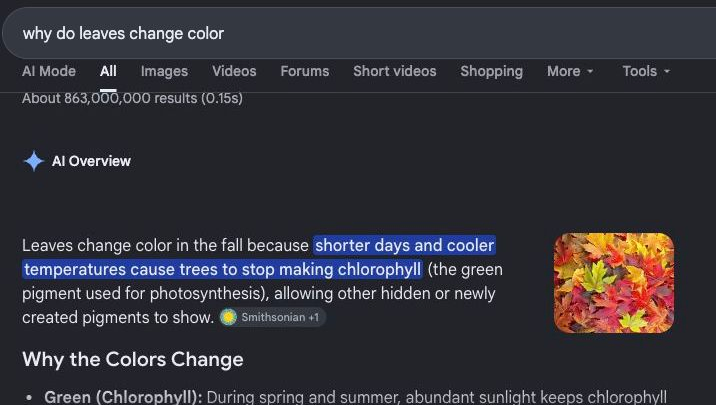
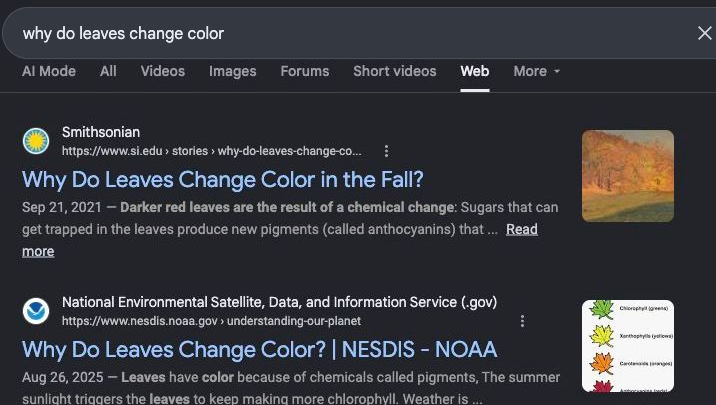
Earlier captured examples of the same query. Google may change the current results.
TenBlueLinks versus an AI Overview blocker
Change everyday address-bar searches
TenBlueLinks publishes browser-specific instructions for using Web as a search engine. Its desktop Chrome guide supplies a URL template and a Make default step. That is a settings change, while an AI Overview blocker changes a supported result page after it loads.
We opened its guide and checked its browser navigation and Copy feedback on November 26, 2026. We did not change a browser’s default engine for this comparison. To keep your default, use our separate Chrome shortcut instead. Restore the previous engine in browser settings to undo a default change.
An AI Overview blocker with custom filters
Check compatibility before copying a rule
If you already use uBlock Origin, its element picker can create a cosmetic rule for the selected site. An AI Overview blocker rule needs to match the surrounding module without hiding ordinary results. Google layout changes can break selectors.
uBlock Origin Lite differs from the full extension. Follow the maintainer’s element-picker instructions for your installed version. This AI Overview blocker comparison does not claim a freshly tested universal uBlock rule. Disable or remove your custom rule if it leaves a gap or hides useful content.
What our AI Overview blocker checks establish
We checked official Chrome 0.1.9 for hiding, restoration and ordinary-result protection; the Windows follow-up confirmed the blank-space fix. Firefox’s official build passed our Mac checks on November 25, 2026. Our Chrome extension page explains how to repeat a check. This AI Overview blocker comparison reuses those observations rather than presenting every browser as newly tested today.
For your own AI Overview blocker check, compare the same query and view, with other search-changing extensions paused. A page that never showed a summary cannot prove hiding worked. Test restoration too. Mobile availability, Google account experiments and language can affect what appears.
AI Overview blocker questions
Which AI Overview blocker should I try first?
Use Web for an immediate links-only search. Try the free desktop extension when keeping All matters. Use custom rules if you already maintain a compatible content blocker.
Does an AI Overview blocker work inside Safari?
Our extension does not. Use the Safari Web steps on Mac, iPhone or iPad.
Can I undo an AI Overview blocker?
Pause the extension, choose All, remove your custom rule or restore your previous search engine, according to the method you chose.