Hide the AI Overview Brave Shows in Google
The AI Overview Brave users see on Google has a different control from Brave Search’s own answer. Check the address bar, then follow the matching steps.
On this page
The AI Overview Brave shows on Google.com
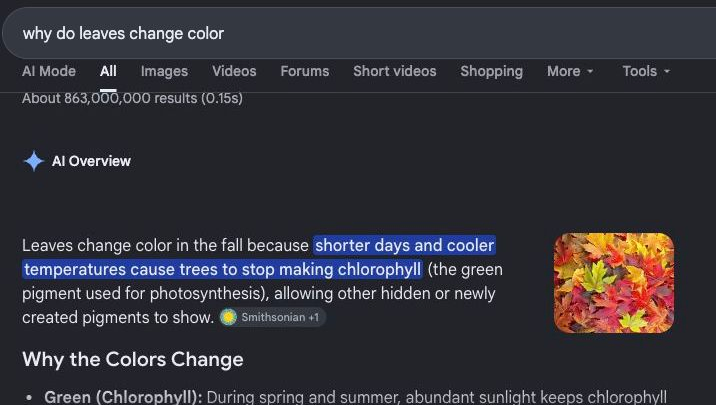
Google’s summary belongs to Google, so Leo settings do not remove it. Select Web below the search field; check More if it is hidden.
Hide the AI Overview Brave displays without installation
Open a sample Google Web search. Compare Web with All on the same query. Web also removes image rows and map cards. Use it when you only need links.
The AI Overview Brave Search settings cannot remove
An address beginning with search.brave.com means you are using Brave’s own search engine. Its generated answer is not Google’s AI Overview. Our extension does not promise to filter Brave Search. Use that engine’s current search settings and help pages for its answer controls.
The AI Overview Brave shows is separate from Leo
Leo has separate browser controls. Hiding an assistant entry does not change a search website’s answer. Name the exact surface when asking for help.
Check Brave Search settings on the device you use rather than copying a browser flag from an old discussion.
Filter the AI Overview Brave displays on desktop
Brave supports Chromium-compatible Chrome Web Store extensions. Its official extension instructions explain installation. Open our Chrome listing and permission guide if you want to assess that route for Google.com.
Our signed-store checks cover Chrome and Edge; Brave is not separately certified. Test a compatible build on a visible summary, refresh older tabs and check restoration. Use Web if installation is unavailable.
Hiding the AI Overview Brave shows: permissions
Inspect the listing’s requested website access before accepting it. Basic local AI hiding needs no account. A compatibility assumption alone is not a reason to buy Pro.
Restore the AI Overview Brave was showing
Compare one Google.com query. Check ordinary titles, destinations and search words. Pause the filter, check restoration, then enable it again. Keep other result-changing tools stable.
For an empty gap, check the version and reload. If it persists, pause the extension and report the query and version through help, leaving out personal searches. Crop account details out of screenshots.
The AI Overview Brave mobile users can hide
Use our Google Web search form on a phone. The desktop Chrome installation flow is not a mobile extension promise. Bookmark the search form, then enter a fresh query.
The AI Overview Brave users see from search shortcuts
Brave can open different engines from bookmarks, shortcuts and its address bar. Check the resulting URL. Keep your current default while trying a Web bookmark.
Questions about the AI Overview Brave users see
Is the AI Overview Brave shows part of Brave Search?
No. Google’s module and Brave Search’s answer belong to different search engines, even when both appear inside Brave.
Can I hide the AI Overview Brave shows for free?
Yes. Google Web is free. Our basic AI hiding is free in supported desktop builds; Pro adds other filters.
Does hiding the AI Overview Brave shows change my account?
A local filter changes what your browser displays. It does not disable Google’s feature on every device signed into your Google account.
How can I restore the AI Overview Brave was showing?
Choose All after using Web. Pause or remove an extension through Brave’s Extensions controls. Restore Brave Search settings separately if that was the engine you changed.