How to Turn Off AI Overview in Edge
To turn off AI Overview in Edge on Google results, install our free add-on or select Google’s Web filter. Bing and Copilot use different controls.
On this page
Turn off AI Overview in Edge on the right website
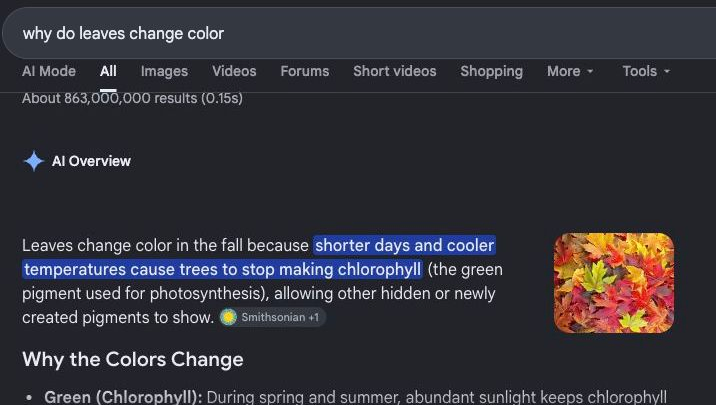
Before you turn off AI Overview in Edge, check the address bar. This guide covers regular results on Google.com. Edge is the browser, while Google or Bing is the search engine. If the page address starts with bing.com, our Google filter does not apply to that answer panel. Open Google before comparing the steps below.
Turn off AI Overview in Edge without changing your default
Open Google in a tab. The add-on leaves your homepage and address-bar engine unchanged, so you can try filtering without changing your usual settings.
Turn off AI Overview in Edge with the free add-on
Open Get Rid of AI Overview on Microsoft Edge Add-ons. Choose Get and confirm the permissions shown by Edge. Use the official listing.
- Open the Extensions menu beside the address bar and pin the add-on if you want quick access.
- Refresh Google result tabs that were open before installation.
- Open the popup and keep Hide AI Overview & AI Mode on.
- Search again on Google.com and check that ordinary links still open.
Turn off AI Overview in Edge with limited permissions
Filtering and preferences stay in your browser. Free AI hiding needs no account. An optional Pro subscription uses your site account for paid access.
Turn off AI Overview in Edge for one search
Select Web below Google’s search field. If you cannot see it, open More or scroll the filters sideways in a narrow window. Open a sample Google Web search. Our Google Web search form starts a new query in that view without installing anything.
Web works without add-ons, including on managed computers where permitted. It can also remove image rows and map cards. Choose All to restore them. Google documents the Web filter.
Turn off AI Overview in Edge and restore it later
When you turn off AI Overview in Edge, click the toolbar switch to pause or restore it. Google can show supported AI elements again on a normal All results page. Turn the switch back on to resume filtering. If you started in Web, choose All first so you are comparing the same result view.
Turn off AI Overview in Edge without hiding ordinary links
Use the same query for the comparison. Check titles, destinations and the first visible results before and after. A page where no summary appeared in either state cannot prove the filter’s effect. If you see a leftover blank container, refresh after checking the installed version and report the layout to support.
Turn off AI Overview in Edge when another control is involved
Edge’s sidebar, address-bar suggestions and Bing answers use different controls. Identify the feature before changing browser-wide settings.
Microsoft provides extension management instructions for disabling or removing add-ons. If several installed tools alter Google results, compare them one at a time. Avoid removing every extension or resetting the entire browser to diagnose one page.
Questions before you turn off AI Overview in Edge
Can I turn off AI Overview in Edge for free?
Yes. Basic AI hiding in our official Edge add-on is free, and Google’s Web filter is free.
Can I turn off AI Overview in Edge on a phone?
Use Web in the mobile browser. This page’s add-on installation steps are for desktop Edge; they are not a claim about mobile extension availability.
Does this turn off AI Overview in Edge and Bing?
The extension targets Google.com. Bing’s answers and Copilot need their own controls.
Will updates keep the option to turn off AI Overview in Edge?
Store installations receive browser-managed updates. Refresh older Google tabs after an update. Google’s layouts can change, so contact support if a specific module stops matching.