Hide the AI Overview Opera GX Shows in Google
The AI Overview Opera GX shows on Google can be hidden with Google’s Web filter. Opera’s Aria sidebar and desktop add-ons have separate controls.
On this page
Check the AI Overview Opera GX is displaying
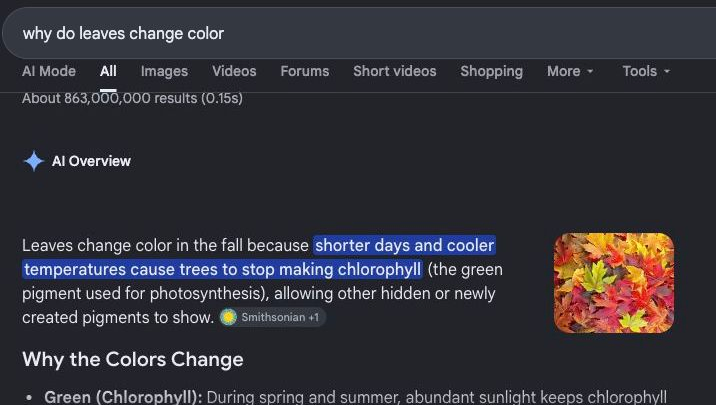
Check the website address. Google.com, Bing and an assistant conversation are different services; Opera GX does not give them one shared off switch.
The AI Overview Opera GX shows is separate from Aria
Aria is a browser assistant. Hiding its shortcut does not remove Google’s summary. Use a Google filter for results and Opera’s controls for its sidebar.
Hide the AI Overview Opera GX shows without an extension
Search Google and select Web beneath the query. Look under More if needed. You can also use our Google Web search form; it opens your query in Web.
- Open a sample Google Web search.
- Check that Web is selected rather than All or AI Mode.
- Open an ordinary result to confirm you can reach the original page.
- Choose All to return to the usual mix of Google modules.
What hiding the AI Overview Opera GX shows changes
Web also leaves out rich cards and image rows. Return to All when you want those modules.
Desktop filters for the AI Overview Opera GX displays
Opera’s extension documentation covers its add-on system and Chrome extension compatibility. Follow current browser prompts; avoid unofficial CRX files and keep security protections enabled.
Our official-store checks cover Chrome and Edge; Opera GX is not separately certified. The Chrome extension guide shows the exact controls and permissions so you can assess a compatible desktop installation. Use the free Web method if the store does not offer a supported installation.
The AI Overview Opera GX users can hide before paying
Confirm basic filtering and restoration on your browser before choosing optional paid rules. Pro is not needed just to hide supported AI Overview and AI Mode elements.
Restore the AI Overview Opera GX was showing
If you used Web, select All. If you installed a filter, pause its toolbar switch on the same Google query. These are separate actions: a paused filter cannot make a summary appear while you remain in a view that excludes it.
Check ordinary titles, open a destination and confirm the query stayed intact. Use a visible overview and wait for loading to finish: a query without one cannot prove the effect.
Troubleshoot the AI Overview Opera GX still shows
After an extension update, refresh result tabs opened beforehand. Check whether another tool also changes the page. Compare one control at a time rather than resetting the browser.
The AI Overview Opera GX users see on managed computers
Work or school policies can block add-ons. Use Web where allowed. Complete Google’s consent or verification screen before checking results.
For a missing Web tab, use the filter troubleshooting guide.
Questions about the AI Overview Opera GX displays
Can I hide the AI Overview Opera GX shows for free?
The Google Web route is free. Our supported desktop extension also offers free basic AI hiding.
Does hiding the AI Overview Opera GX shows change Bing too?
No. A Google filter applies to Google’s page. Check separate settings for Bing, Brave Search or an assistant.
Can I hide the AI Overview Opera GX shows on a phone?
The Web filter works through a mobile browser where Google offers it. The desktop extension steps do not promise mobile installation.
How do I report an AI Overview Opera GX still shows?
Use support with the browser version, a non-sensitive query and what changed. Leave passwords, payment details and account information out of screenshots.